
Payments
How a Kite Passport agent pays for x402 services, from your allowance or from a spending session.
Pay for a service
Your agent can pay for services on Kite once Passport is set up and your wallet is funded. The agent discovers paid services in the catalog, pays from your allowance or from a spending session you approve, and you check the transaction in your activity. The whole flow takes a few steps:
-
Set up Passport for your agent. Follow Install Passport for your coding agent or cloud agent, then come back here.
-
Fund your wallet. Your Passport wallet needs USDC.e on Kite chain before your agent can spend. See Funding your wallet for how to add funds by card, direct deposit, or Kite Bridge.
-
Search the catalog for a service that fits your need:
ksearch service list \
  --query weather \
  --asset USDC \
  --limit 10 \
  --output json
Or ask your agent: "Show me all the weather services available on Kite Passport."
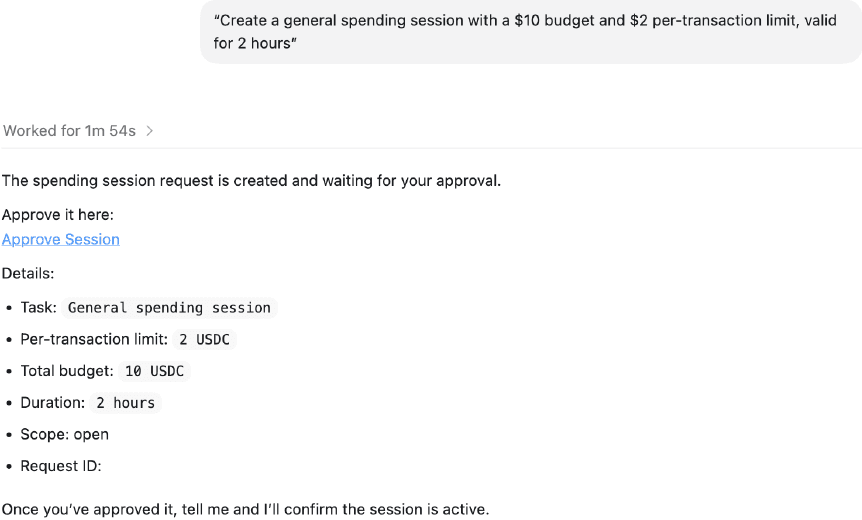
- Pay from your allowance, or create a session. When you have an allowance, paid calls come out of it with no prompt. Use a spending session for tighter control of one task, or for a shopping checkout. A session is also what you create when the CLI tells you the allowance can't pay. Your agent requests a session like this:
kpass session create \
  --task-summary "Make one weather API call" \
  --max-amount-per-tx 2 \
  --max-total-amount 10 \
  --ttl 24h \
  --assets USDC \
  --output json
This returns an approval URL. Open it on any device where your passkey lives and approve the request. The session is active once you approve it. Your agent can then spend up to the total limit without asking again, until the session expires or runs out of budget. See Allowance and sessions to compare the two and pick one.
- Make a paid call to a service:
kpass session execute \
  --url "https://api.example.com/weather?location=San%20Francisco" \
  --method GET \
  --output json
The request is paid with USDC according to the service's x402 pricing, and your agent receives the response.
- Check your activity. Review completed payments and session spending on the Passport dashboard at agentpassport.ai/dashboard.
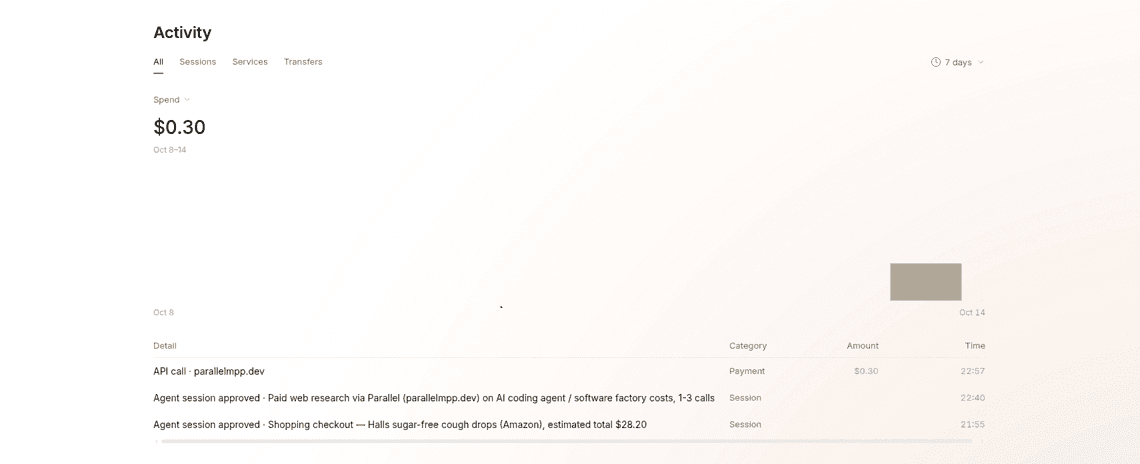
You can also list active sessions with:
kpass session list --status active --output jsonOr view recent activity:
kpass activity --limit 20 --output jsonExample prompt
Give your agent a complete prompt like this to handle the whole flow:
I need to use a weather API through Kite Passport. Search the catalog for weather services, create a spending session with a $5 total budget and $1 per-transaction limit valid for 2 hours, make one call to get the weather for San Francisco, and show me the response.
Your agent uses the installed Kite Passport skills to run the search, request the session (which you approve with your passkey), execute the paid call, and report back.
To see a live example, open the Passport Playground, or browse paid services on Explore.